

Zephyr API MCP
The Zephyr API MCP server connects compatible AI assistants to the Zephyr Cloud control plane. You can use natural-language requests to inspect organizations and applications, review deployment state, and perform authorized operations such as promoting a version or updating a tag.
Production endpoint:
Prerequisites
You need:
- A Zephyr Cloud account
- Access to the organizations and applications you want to manage
- An MCP client that supports remote HTTP servers and OAuth
The server opens the standard Zephyr sign-in flow. You do not need to create or paste an API token.
Connect an MCP client
Tap
Tap is our AI platform and the recommended way to use the Zephyr API MCP. It makes Zephyr Cloud available directly to your Tap specialists without local CLI setup.
In Tap, open Settings → MCP Servers and select Add Server.
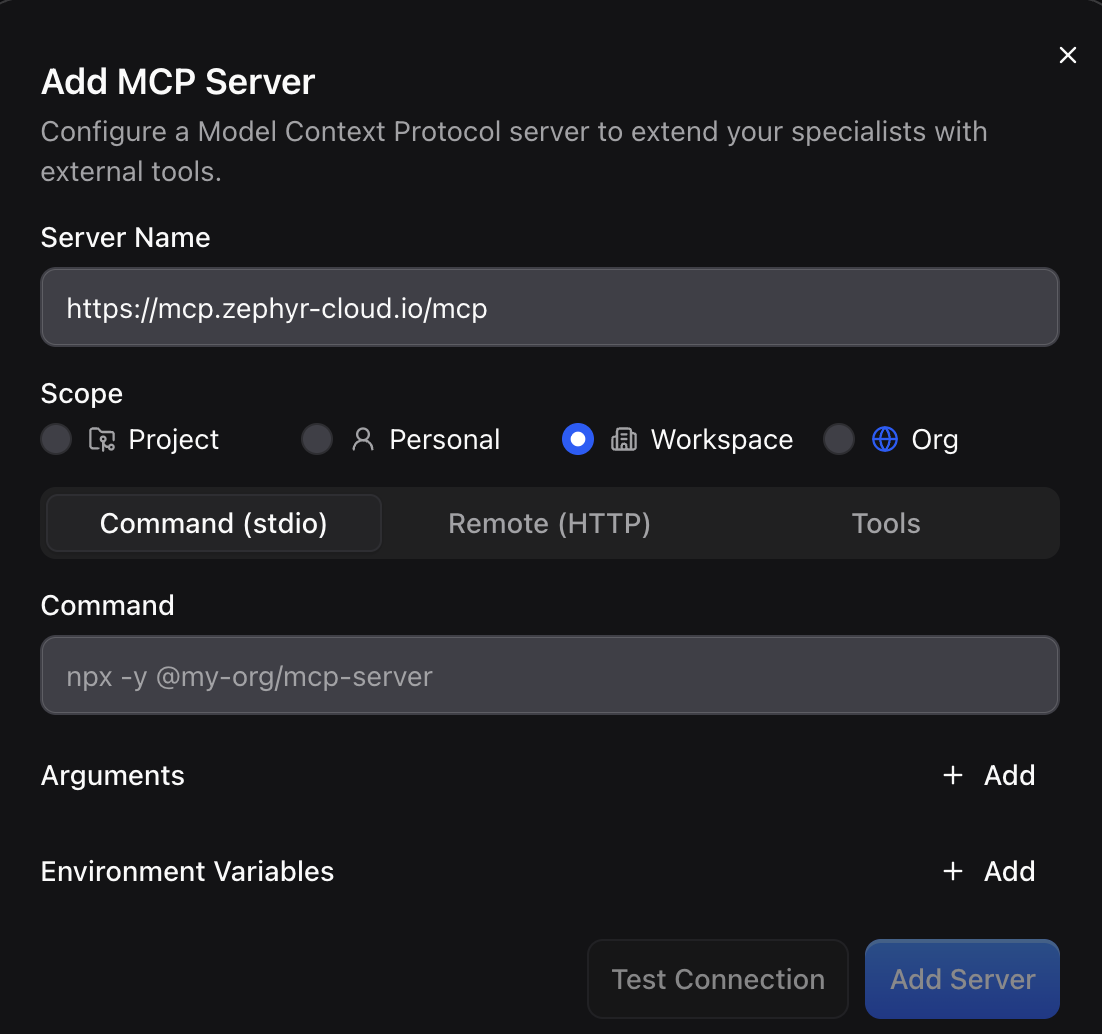
The dialog opens on Command (stdio). Configure Zephyr as a remote server:
- Set Server Name to
zephyr. - Choose Remote (HTTP) and enter
https://mcp.zephyr-cloud.io/mcpas the Server URL. - Select OAuth for authentication.
- Select Add Server, then complete the Zephyr login flow in your browser.
Claude Code
Add the remote server for your user account:
Start Claude Code, open /mcp, select zephyr, and complete the Zephyr login flow.
Codex
Add the server, then sign in:
Your browser opens the Zephyr login page. After authorization, restart or refresh the MCP connection if your current Codex session does not show the server.
Cursor
Create .cursor/mcp.json in your project, or add the same server to your global Cursor MCP configuration:
Open Cursor Settings → Tools & MCP, enable zephyr, and complete the Zephyr login flow. See Cursor's MCP documentation for global configuration and server controls.
Gemini CLI
Add Zephyr to your user configuration:
Start Gemini CLI, run /mcp auth zephyr, and complete the Zephyr login flow. See the Gemini CLI MCP documentation for configuration and authentication details.
VS Code with GitHub Copilot
Add Zephyr to your VS Code user profile:
Alternatively, run MCP: Add Server from the Command Palette, choose HTTP, and enter the production endpoint. Start the server and complete the Zephyr login flow when prompted. See Use MCP servers in VS Code for workspace and user configuration options.
Other MCP clients
Use the production endpoint in your client's remote MCP configuration. For clients that accept JSON configuration, the shape is typically:
Configuration fields differ between clients. Choose the HTTP or Streamable HTTP transport when the client asks for a transport type.
How the MCP server works
The server uses Code Mode to expose the full Zephyr API through two tools:
API paths are not hard-coded into the MCP server. It loads the current OpenAPI description from the production Zephyr API and uses that description to discover available operations.
The normal sequence is:
- The assistant uses
searchto identify the correct API operations. - It uses
executeto read or change data through those operations. - For changes, it reads the affected resource again to verify the final state.
You normally do not need to mention these tools. Describe the outcome you want and provide the relevant Zephyr identifiers.
Explore your Zephyr account
Start with read-only requests when you do not know the exact organization, project, or application name:
Zephyr applications follow the {application}.{project}.{organization} identifier format. See Organization Structure for details.
Inspect a deployment
Ask for the current state and the evidence you need:
Promote or roll back a version
For a change, provide the complete source and destination. Ask the assistant to inspect both before changing anything and to verify the result afterward:
For a rollback:
Review Versions, Tags & Environments, and Instant Rollbacks before changing production routing.
Troubleshooting
Authentication fails
Reconnect the MCP server and repeat the Zephyr login flow. A 401 response means the client did not provide a valid MCP credential.
For Codex:
The server appears unavailable
Check the public health endpoint:
A healthy server returns: